
Struggling to merge scanned PDFs or files with mixed page sizes? Discover the 8 best PDF merge tools that preserve formatting, page dimensions, and scan quality, so your final document always looks exactly right.
When working with scanned PDFs and files with different page sizes, merging them into one file without losing formatting can be challenging.
The wrong tool may result in cropped, stretched, or improperly sized pages.
Fortunately, there are PDF merge tools designed specifically to handle these types of files while keeping every page in perfect order.
In this article, we will explore the best PDF merge tools that can help you combine scanned PDFs and mixed-page-size files seamlessly.
Why Scans and Mixed Page Sizes Break Many PDF Mergers
Merging PDFs with varying page sizes and scanned content can cause numerous formatting issues.
A standard PDF merger tool may not maintain the correct page size, resulting in cropped content, distorted text, or incorrect margins. This is especially problematic when merging scanned documents, as the page dimensions are sometimes inconsistent or not set to standard sizes like A4 or Letter.
For example, a legal team merging court filings scanned at different offices might end up with a final document where letter-size pages sit awkwardly next to legal-size pages, completely throwing off the document’s readability.
According to Adobe’s 2026 PDF usage report, over 40% of businesses deal with mixed-format documents on a weekly basis, making this a recurring problem rather than an edge case.
Quick Checklist Before You Choose a PDF Merge Tool
Before choosing a PDF merge tool, consider the following factors to ensure a smooth merging process:
- Scan Quality: Ensure the tool can handle scanned PDFs without distorting text or images. Low-resolution scans especially need a tool that can manage compression without degrading output quality.
- Page Size Compatibility: Check that the tool can merge different page sizes (A4, Letter, Legal, etc.) without causing layout problems. Many free PDF merge tools default to a single output size, which can clip content from pages that fall outside that standard.
- Orientation Handling: Ensure the tool maintains correct page orientations (portrait vs. landscape). A single misaligned page can confuse readers and break the document’s overall flow.
- Margin Consistency: Look for a tool that preserves the original margins across all pages. Inconsistent margins are one of the most common complaints after merging documents from multiple sources.
The 8 Best PDF Merge Tools for Scanned Files and Mixed Page Sizes
Here are the top PDF merger tools that can handle scanned PDFs and files with different page sizes:
1. Lumin PDF
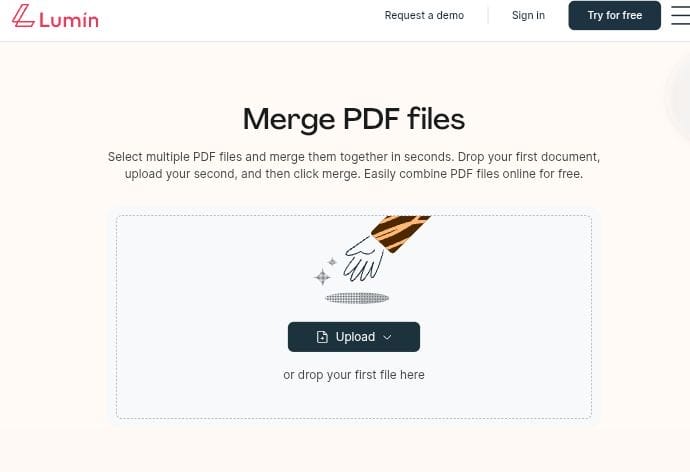
Lumin is an all-in-one PDF editor that includes a powerful tool to merge PDF files. It preserves page sizes, orientations, and margins when merging scanned PDFs and documents with mixed page sizes.
It is particularly popular in education and business environments where formatting consistency is non-negotiable.
Key Features
- Easy-to-use interface: Lumin’s dashboard is flexible and intuitive, making it accessible even for users with little experience with PDF software.
- Cloud integration: Files sync directly with Google Drive and other cloud platforms, keeping merged documents accessible from any device.
- Ability to handle scanned files and varying page sizes: Lumin automatically detects different page dimensions and preserves them during the merge, preventing any unwanted scaling or cropping.
- OCR support: Optical character recognition converts scanned text into selectable, searchable content, which is critical for document archiving and compliance workflows.
- Real-time collaboration: Multiple users can work on the same document simultaneously, making it ideal for teams reviewing merged files before finalizing them.
- Annotation tools: Users can add comments, highlights, and notes directly on merged pages, which fits naturally into editorial and review workflows.
- Secure file handling: Lumin uses encrypted connections and controlled sharing permissions to protect sensitive documents during and after the merging process.
Pros
- Simple workflow: The merge process is straightforward with drag-and-drop functionality.
- Collaboration-friendly: Teams can share, review, and annotate merged files in real time without switching between platforms.
- Automatic page size handling: Lumin intelligently maintains each page’s original dimensions, so a legal-size page stays legal-size rather than being rescaled to match surrounding pages.
- Cross-platform accessibility: Lumin works in the browser without requiring software installation, making it convenient for remote teams across different operating systems.
- Solid free tier: Lumin offers a usable free plan that covers basic merging tasks, which is a practical starting point for individuals or small teams before committing to a subscription.
Cons
- Some advanced features require a subscription: Features like bulk processing and advanced OCR are locked behind paid plans.
2. Adobe Acrobat DC
Adobe Acrobat is known for its powerful PDF merge tools. When it comes to merging PDFs, it provides detailed control over page layouts and sizes, making it a solid choice for scanned files and mixed-page documents.
Adobe holds the largest share of the professional PDF software market, and it has been refining the PDF format since it first introduced it in 1993.
Key Features
- Page resizing options: Adobe gives users the ability to normalize or preserve page sizes when merging.
- Drag-and-drop functionality: Files can be added and reordered easily through a visual panel.
- OCR for scanned PDFs: Acrobat’s OCR engine is among the most accurate available.
- Advanced page management: Users can rotate, delete, and reorder individual pages before finalizing the merged file.
- Batch processing: Adobe supports merging multiple files in a single workflow.
- Integration with Adobe Cloud: Merged files sync to the broader Adobe ecosystem, including Adobe Sign and Adobe Express.
- Digital signature support: Users can add legally binding signatures directly to the merged document.
Pros
- Comprehensive features for complex merges: From OCR to digital signatures, Acrobat covers the full document lifecycle beyond just merging.
- Superior OCR accuracy: Acrobat’s OCR is industry-leading, making it the top choice when scanned text quality is critical.
- Excellent customer support: Adobe provides extensive documentation, tutorials, and live support for paying subscribers.
- Consistent software updates: Regular updates address bugs and introduce improvements, keeping Acrobat ahead of most alternatives.
Cons
- Can be expensive for individuals: Adobe Acrobat DC’s subscription starts at around $14.99 per month, which can be difficult to justify for occasional users.
3. PDFsam
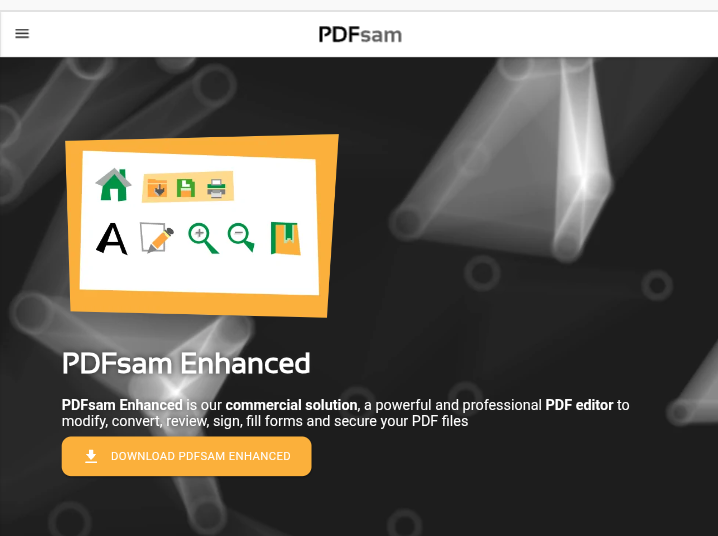
PDFsam is an open-source PDF merge tool that offers an efficient way to merge PDFs with varying page sizes. It is lightweight and performs well with scanned documents, making it a practical choice for users who prefer desktop software without recurring costs.
Key Features
- Split and merge functionality: PDFsam handles both operations in the same interface.
- Page rotation: Users can rotate individual or all pages before merging to correct orientation issues common in scanned files.
- Reorder pages: PDFsam’s visual page editor allows users to drag and rearrange pages across multiple documents before combining them.
- Handles mixed sizes: The tool preserves each page’s original dimensions during merging rather than forcing a uniform output size.
- Bookmark preservation: PDFsam retains existing bookmarks and document structure from the original files during the merge.
- Open-source transparency: Being open-source means the code is publicly reviewed by the developer community.
Pros
- No account required: Users can start merging right away without creating an account or providing any personal information.
- Completely free for core features: PDFsam Basic is free to download and use with no usage caps for standard merging tasks.
- Lightweight and fast: PDFsam runs efficiently even on older hardware, making it a strong option for users with limited system resources.
- Privacy-focused: Since it is a desktop application, files are processed locally and never uploaded to a server, which is ideal for sensitive documents.
Cons
- Limited features for complex editing: PDFsam Basic does not support OCR, advanced annotation, or form editing, so users with more complex requirements may find it lacking.
4. Sejda
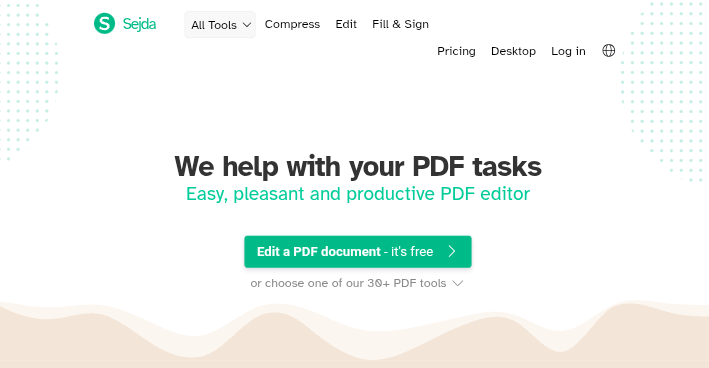
Sejda offers a user-friendly online PDF merging tool that can handle scanned files and mixed page sizes while ensuring the layout remains intact. It is a good fit for professionals who need reliable results without installing software.
Key Features
- Merge and split: Sejda handles both operations cleanly with a visual file manager.
- Compress PDFs: Built-in compression reduces file sizes after merging.
- Edit PDFs: Basic editing tools allow users to adjust text, add images, or insert pages before finalizing the merge.
- Page size consistency: Sejda preserves each page’s original dimensions during the merge rather than standardizing everything to one size.
- Password protection: Users can apply password encryption to merged files directly within the platform.
- Cloud file import: Sejda supports importing files from Google Drive, Dropbox, and OneDrive, reducing friction in the document preparation process.
Pros
- No installation needed: Everything runs in the browser, making Sejda immediately accessible from any device.
- Online accessibility: Sejda works entirely in the browser, so there is nothing to install or maintain.
- Simple interface: The tool’s layout is clean and focused, keeping the process straightforward without unnecessary options getting in the way.
- Multiple format support: Beyond PDFs, Sejda can convert and handle a range of file types, adding flexibility to its use case.
- No account needed for basic use: Casual users can merge documents without registering, keeping the entry barrier low.
Cons
- Daily usage limits on the free version: Sejda’s free plan restricts users to three tasks per hour and files up to 50MB, which may be restrictive for heavier workloads.
5. Smallpdf
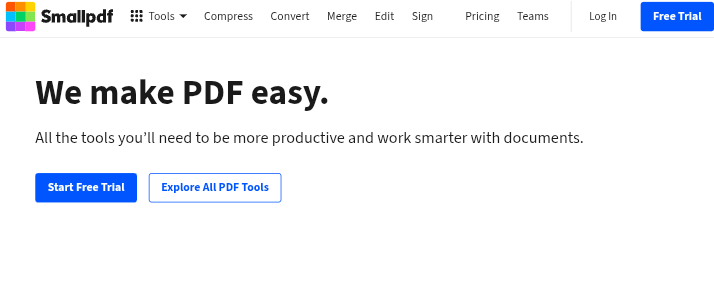
Smallpdf is an online PDF merge tool known for its simplicity and speed. It can merge PDFs with different page sizes without causing layout issues, making it ideal for small and medium-sized tasks. Smallpdf reports over 25 million active users monthly, which reflects just how widely adopted it has become for everyday PDF work.
Key Features
- Merge and compress: Smallpdf combines merging with compression in one step, keeping the final file size manageable.
- Convert files: Users can convert Word, Excel, and image files directly to PDF before merging everything.
- Edit PDFs: Basic editing tools are available for making adjustments before or after merging.
- eSign support: Smallpdf includes a built-in electronic signature tool, useful for finalizing documents after a merge.
- Mobile app available: Dedicated iOS and Android apps give users the flexibility to merge documents from their phones or tablets.
- Cloud integration: Files from Google Drive and Dropbox can be pulled directly into Smallpdf without manual downloading.
Pros
- Secure file handling: All uploaded files are automatically deleted from Smallpdf’s servers within one hour, reducing data exposure risk.
- Fast processing: Smallpdf handles most merge jobs in seconds, even for moderately large files.
- No account required for basic tasks: Users can start merging without going through a registration process.
- Simple and intuitive design: The interface is visually uncluttered, making Smallpdf one of the most beginner-friendly PDF merge tools on this list.
- Wide format support: Smallpdf accepts a broad range of input formats, not just PDF, which reduces the need for prior conversion steps.
Cons
- Limited features on the free plan: Free users are restricted to a limited number of tasks per day, and access to features like batch processing and eSign requires a paid subscription starting at around $9 per month.
6. iLovePDF
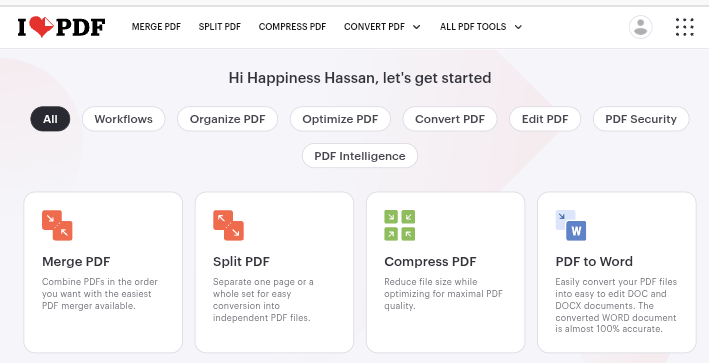
iLovePDF is another solid option for PDFs merging tools. It can handle scanned documents and varying page sizes with minimal effort and preserves the original formatting. It is widely used in academic and administrative settings due to its accessible feature set and zero-registration entry point.
Key Features
- Merge and split: Core merge and split functions work smoothly with scanned and mixed-size documents.
- Compress PDFs: iLovePDF’s compression reduces file sizes after merging while maintaining reasonable image quality.
- Organize pages: Users can reorder, rotate, and delete pages through a visual manager before merging.
- PDF to image conversion: Individual pages can be exported as image files if needed after the merge.
- Watermark tool: Users can add custom watermarks to merged documents for branding or confidentiality purposes.
- Protect and unlock PDFs: Password protection can be applied or removed directly within the platform.
- Batch processing support: iLovePDF allows users to upload and process multiple files simultaneously, saving time on larger jobs.
Pros
- Simple and fast: iLovePDF gets the job done quickly, with minimal steps between uploading and downloading the merged file.
- No registration required for basic use: Guest users can access core features without creating an account.
- Broad feature set for a free tool: The platform offers a wide range of tools without immediately pushing users toward a paid plan.
- Good handling of scanned files: iLovePDF maintains page dimensions and image quality well when merging scanned PDFs.
- Multi-language support: The platform is available in over 25 languages, making it accessible to a global user base.
Cons
- The free version has limitations on usage: Larger files and batch operations are restricted on the free tier, and premium access starts at around $4 per month.
7. Foxit PDF Editor
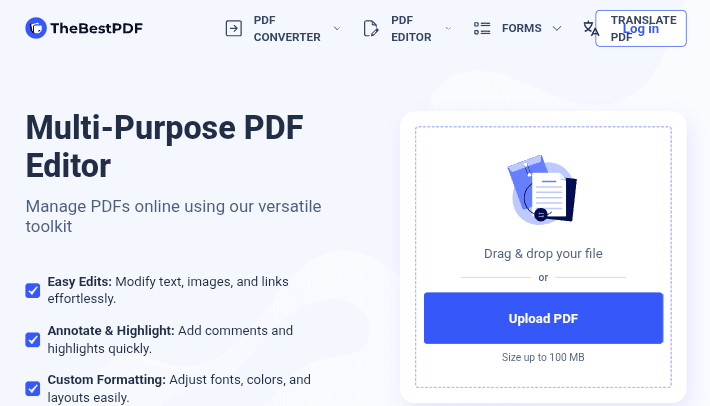
Foxit is a comprehensive PDF editing tool that can handle complex merges involving scanned PDFs and documents with mixed page sizes. It is a strong alternative to Adobe Acrobat for users who want professional-grade features without the Adobe price tag.
Key Features
- Merge and edit: Foxit combines robust merging with a full suite of editing tools in one application.
- Annotate PDFs: Users can add comments, highlights, and markups to merged documents without switching to another tool.
- High-quality page handling: Foxit maintains page dimensions and visual fidelity across all merged content, including scanned pages.
- OCR support: Foxit’s built-in OCR converts scanned text into selectable, searchable content within the merged document.
- Collaboration tools: Multiple users can review and comment on documents simultaneously through Foxit’s shared review feature.
- Digital signature support: Legally valid electronic signatures can be applied directly within the application.
- ConnectedPDF technology: Foxit’s proprietary technology allows document authors to track document usage and manage permissions even after a file has been distributed.
Pros
- Customizable interface: Foxit allows users to adjust toolbars and workspaces to match their workflow.
- Fast performance: Foxit is known for opening and processing large PDFs quickly.
- Strong OCR capability: Foxit’s OCR produces quality, accurate results from scanned pages, making merged documents fully searchable.
- Enterprise-ready: Foxit offers volume licensing and centralized management options, making it a practical fit for organizations with large teams.
Cons
- Premium version required for full features: The free version of Foxit is limited, and users will need to purchase Foxit PDF Editor Pro to unlock OCR, advanced editing, and collaboration tools.
8. Nitro PDF Pro
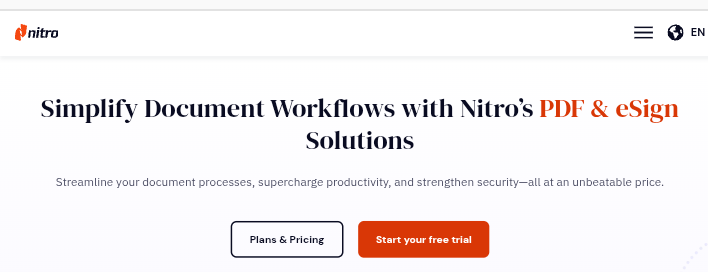
Nitro PDF Pro offers advanced features for businesses, including the ability to merge PDFs with varying page sizes without compromising layout integrity. Nitro’s Productivity Report found that organizations using Nitro reduced document-related processing time by an average of 30%, which highlights its value in high-volume professional environments.
Key Features
- Page resizing: Nitro gives users control over how page sizes are handled during merging, whether preserving original dimensions or normalizing to a standard format.
- OCR for scanned PDFs: Nitro’s OCR engine converts scanned text to selectable content, enabling search and editing in the final merged file.
- Secure cloud storage: Nitro integrates with cloud platforms and applies enterprise-grade encryption to stored and shared documents.
- Batch processing: Multiple PDFs can be merged in a single operation, reducing manual effort for high-volume workflows.
- eSign integration: Nitro includes built-in electronic signature tools that comply with major digital signature standards.
- Conversion tools: Nitro supports converting Word, Excel, and PowerPoint files to PDF before merging, streamlining the document preparation process.
- Analytics dashboard: Nitro Pro includes usage tracking and document analytics, giving teams visibility into document workflows across the organization.
Pros
- Powerful feature set tailored to business needs: Nitro covers the full document lifecycle, from creation and editing to signing and archiving.
- Reliable handling of large, complex files: Nitro handles high-page-count and high-resolution scanned documents without significant slowdowns.
- Secure and compliant: Nitro meets major compliance standards, making it suitable for regulated industries like healthcare, finance, and legal.
- Efficient batch processing: The ability to merge large numbers of files in a single job saves considerable time in document-heavy environments.
- Responsive customer support: Nitro offers dedicated business support options, including onboarding assistance for new enterprise accounts.
Cons
- Higher cost for individual users: Nitro PDF Pro is priced primarily for business use, and individual licenses can be difficult to justify for occasional personal use.
Recommended Workflow to Merge Scans Without Losing Readability
To ensure a smooth merging process for scanned PDFs, follow this workflow:
- Check PDF Quality: Make sure the scans are high-quality before you start. Ideally, scans should be at a minimum of 300 DPI to ensure text remains sharp and legible in the final merged file.
- Choose the Right Tool: Select a PDF merger tool that can handle different page sizes and scan quality, like Lumin or Adobe Acrobat DC.
- Optimize Scanned PDFs: Before merging, ensure scanned PDFs have been processed with OCR for editable text if necessary, and that pages are correctly oriented.
- Reorder Pages: Arrange the pages in the correct order before merging to maintain a logical flow throughout the document.
- Merge and Save: After merging, review the document carefully for any formatting issues, then save and share the final file.
Common Problems After Merging (And How to Fix Them)
While merging PDFs with mixed page sizes, you may encounter a few common issues:
- Page Size Problems: Some tools might alter the size or margins during merging. Use a tool like Lumin or Adobe Acrobat that preserves the original layout to avoid this issue from the start.
- Cropping or Stretching Content: Check for any content that has been cropped or stretched due to misalignment. A simple adjustment in the tool’s page settings can usually correct this without needing to re-merge.
- Orientation Issues: If pages appear misaligned between portrait and landscape, use the tool’s rotate feature to correct them before merging.
How to Compare Tools (Criteria for Teams and Heavy Documents)
When selecting a PDF merger tool, consider the following criteria:
- Ease of Use: Look for a user-friendly interface that does not require technical expertise to operate.
- Handling Large Files: Choose a tool that can process large files without crashing or slowing down noticeably.
- Customization Options: A tool that allows for advanced customization such as page orientation and size adjustments will give you better control over the final output.
- Collaborative Features: If you need to work with a team, look for tools like Lumin that support real-time editing and sharing.
- Security: Ensure the tool offers encryption and secure cloud storage for your files, especially if you are handling sensitive or confidential documents.
Comparison of the Best PDF Merge Tools
Here is how the best PDF merge tools compare to each other:
| PDF Merge Tool | Best for | OCR Support | Mixed page size | Free plan | Platform |
| Lumin | Teams and collaboration | Yes | Yes | Yes | Web/Cloud |
| Adobe Acrobat | Enterprise and professional use | Yes | Yes | No | Web/desktop |
| PDFsam | Privacy-conscious/offline users | No | Yes | Yes | Desktop |
| Sejda | Occasional online merging | No | Yes | Yes (limited) | Web |
| Smallpdf | Beginners and light users | No | Yes | Yes (limited) | Web/Mobile |
| iLovePDF | Academic and admin use | No | Yes | Yes (limited) | Web |
| Foxit | Power users and businesses | Yes | Yes | No | Web/Desktop |
| Nitro PDF Pro | High-volume business workflows | Yes | Yes | No | Web/Desktop |
FAQ
Is it possible to merge PDFs with different page sizes?
Yes, with the right PDF merge tool, such as Lumin or Adobe Acrobat, you can merge PDFs with varying page sizes without losing content or formatting.
Can I merge scanned PDFs into one file without losing text quality?
Yes, as long as the scanned PDFs are processed with OCR technology, the text will remain editable and the layout intact after merging.
What is the best PDF tool for handling large PDFs with mixed page sizes?
Lumin, Adobe Acrobat, and Foxit PDF Editor are excellent choices for handling large PDFs with mixed page sizes, as they preserve formatting and allow for easy adjustments throughout the process.
Final Thoughts
Choosing the right PDF merge tool comes down to understanding your specific needs and how often you deal with scanned or mixed-format documents.
If you are an individual user handling occasional merges, a free tool like PDFsam or iLovePDF will likely serve you well without any cost commitment.
If you are part of a team that regularly works with large, complex, or scanned documents, a more robust solution like Adobe Acrobat DC, Foxit PDF Editor, or Nitro PDF Pro will give you the reliability and control the work demands.
For most users sitting somewhere in the middle, Lumin stands out as a well-rounded option. It handles the core challenges of merging scanned PDFs and mixed-page-size documents effectively.
Also, Lumin supports team collaboration without requiring everyone to install desktop software, and comes with a free tier that makes it easy to test before committing financially.